DPI for printing: what resolution you need
How much resolution your images need: 300 dpi for small items, 100 to 150 dpi for banners, how to check any image in one sum, and worked examples.
Last updated
The right dpi for printing depends on how close people stand to the finished item: 300 dpi at full size for small things read close up, such as labels, stickers, business cards and flyers, and 100 to 150 dpi at full size for large banners and roller banners read from a few metres away. What matters is the number of pixels you have compared with the size it will print, not the dpi number stored in the file. Below is how to check that in a minute, with worked examples.
What dpi for printing actually measures #
Dpi (dots per inch, often used loosely for pixels per inch) tells you how many pixels of your image land in each inch of the printed item. A photo 3000 pixels wide has no fixed dpi of its own. Print it 10 inches wide and it is 300 dpi; print it 60 inches wide and the same file is 50 dpi.
That is why the “72 dpi” or “300 dpi” label inside an image file tells you very little. Changing that setting without adding pixels changes nothing on the print. Always work from the pixel size and the finished size.
How much resolution each product needs #
The further away the reader, the less detail the eye can pick out, so the dpi for printing a large item is lower than for a small one. These are the targets from our artwork guidelines, at the finished size:
| Item | Viewed from | Aim for |
|---|---|---|
| Labels, stickers, business cards, flyers, small safety signs | Arm’s length | 300 dpi |
| Posters and boards, A3 to A1 | One to a few metres | 150 to 300 dpi |
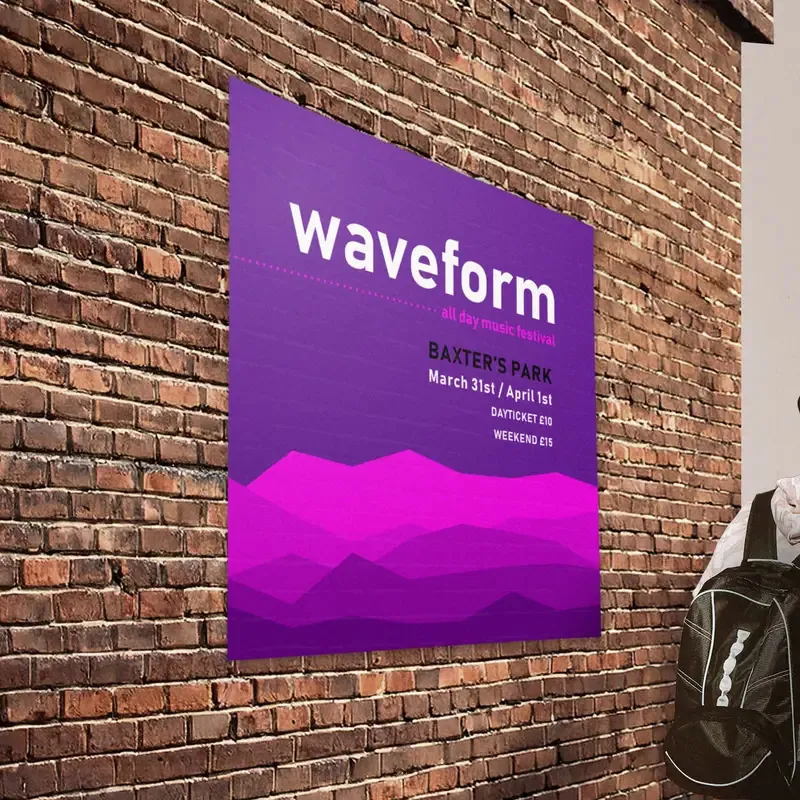
| Banners, roller banners, hoardings, backdrops | A few metres or more | 100 to 150 dpi |
Text and logos are different: if they are vector artwork (see below), they print sharp at any size and have no dpi at all. The targets above are for photos and any logo that only exists as a pixel image.
How to check your image in one sum #
Find the pixel width of the image (on Windows, right-click the file, Properties, Details; on a Mac, Get Info or the Preview inspector). Then:
- Printed width in inches = printed width in mm ÷ 25.4
- Effective dpi = pixel width ÷ printed width in inches
The inch is fixed in UK law at exactly 25.4 mm (it is defined through the yard in the Weights and Measures Act 1985), so that conversion never changes. Do the same sum for the height if the image is cropped.
Worked examples of dpi for printing
| Job | Sum | Result |
|---|---|---|
| A 3000 px wide logo stretched across a 6 ft × 3 ft banner (1829 × 914 mm) | 1829 ÷ 25.4 = 72 in; 3000 ÷ 72 | About 42 dpi: too low, it will look soft |
| The same logo printed 600 mm wide on that banner | 600 ÷ 25.4 = 23.6 in; 3000 ÷ 23.6 | About 127 dpi: fine for a banner |
| A full-size photo on an 850 × 2000 mm roller banner | 33.5 × 78.7 in at 100 to 150 dpi | Needs about 3350 × 7870 px at the low end, 5020 × 11810 px at the high end |
| A full-bleed photo on an A4 flyer (216 × 303 mm with bleed) | 8.5 × 11.9 in at 300 dpi | Needs about 2550 × 3580 px |
| A logo 20 mm wide on a PAT test label (51 × 25 mm) | 0.79 in at 300 dpi | Needs about 240 px wide |
The first two rows show the useful trick: if a logo is too small for the space, print it smaller. A modest logo sharp in the corner looks far better than a big blurred one across the middle.
Why images from websites and phones let you down #
- Website logos are usually a few hundred pixels wide, sized for a screen header. That is enough for a 20 mm label, but nowhere near enough for a banner.
- Social media images are resized and compressed when they are posted, which adds blocky patches that show up badly in print.
- Screenshots capture only the pixels on your screen, and often include blurring from the screen itself.
- Enlarging in software adds pixels but no real detail. It rarely rescues a small image for a big print.
Modern phone photos are usually large enough for posters and many banner uses, as long as you send the original file and not a copy shrunk by a messaging app. For big files, see how to send large artwork files.
Vector logos avoid the problem #
A vector logo is stored as shapes and lines rather than pixels, so dpi for printing stops being a question: it prints sharp on a label or a 13 ft 1 in × 3 ft 3 in (4000 × 1000 mm) banner alike. SVG, PDF, AI and EPS files from the person who designed your logo are often vector, although a PDF or EPS can also just contain a pixel image. If you only have a small, fuzzy logo, every product page has a Redraw / vectorise my logo from a low-res file option under Artwork for £50: we recreate it as a clean vector file that you keep.
The low-resolution warning in our designer #
If you design online, the designer works out the dpi for printing for you. When a logo or photo falls below the target at the size you have placed it (100 dpi on large items such as banners, 150 dpi on small ones), the checks panel tells you its dpi at that size, the figure we suggest and that it may print blurred, with the choice to make it smaller, upload a bigger file or choose the logo redraw. It is a warning, not a block, so you decide. The print file uses your original image at its full size, not the lighter copy shown on screen. Our guide to how to add a logo to a design covers placing and sizing it.
If you upload your own artwork instead, a person checks the resolution as part of the free file check and tells you if an image is likely to print soft before anything is made.